iPad Template
Why this app?
One of the irritations of creating apps is the amount of boilerplate code you write time after time. Apple do their best to help by providing templates to get you started but those templates are very basic.
You can create custom templates using the same templating system that Apple do. However, these templates are very difficult to create once you stray from basic content. It is a very deep rabbit hole that can consume you for days. The end result will be flexible but, given the lack of documentation, the end result can also be fragile and subject to whatever changes Apple choose to implement.
i wanted a more reliable solution that was easier to maintain. To do that I took the simple route of creating a working iPad app with the facilities I wanted already coded and to use that as the basis of a template.
This is what this project represents. I now have a complete and working iPad app that I can clone from GitHub and rename, saving myself many hours of repeatative coding and providing me with a consistent layout for my projects.
Key Learning Points
What did I want to achieve?
The aims are simple;
- A clonable iPad template app.
- Implementation of a basic NavigationSplitView architecture.
- A pre-coded About popup.
- A pre-coded Settings framework.
- A launch screen that adapts to portrait and landscape orientation.
I was very surprised to find that the games came over very easily. I created the framework project in the iPad sources and just copied the files from the Mac. They just ran... mostly.
What it looks like
And the end result is...
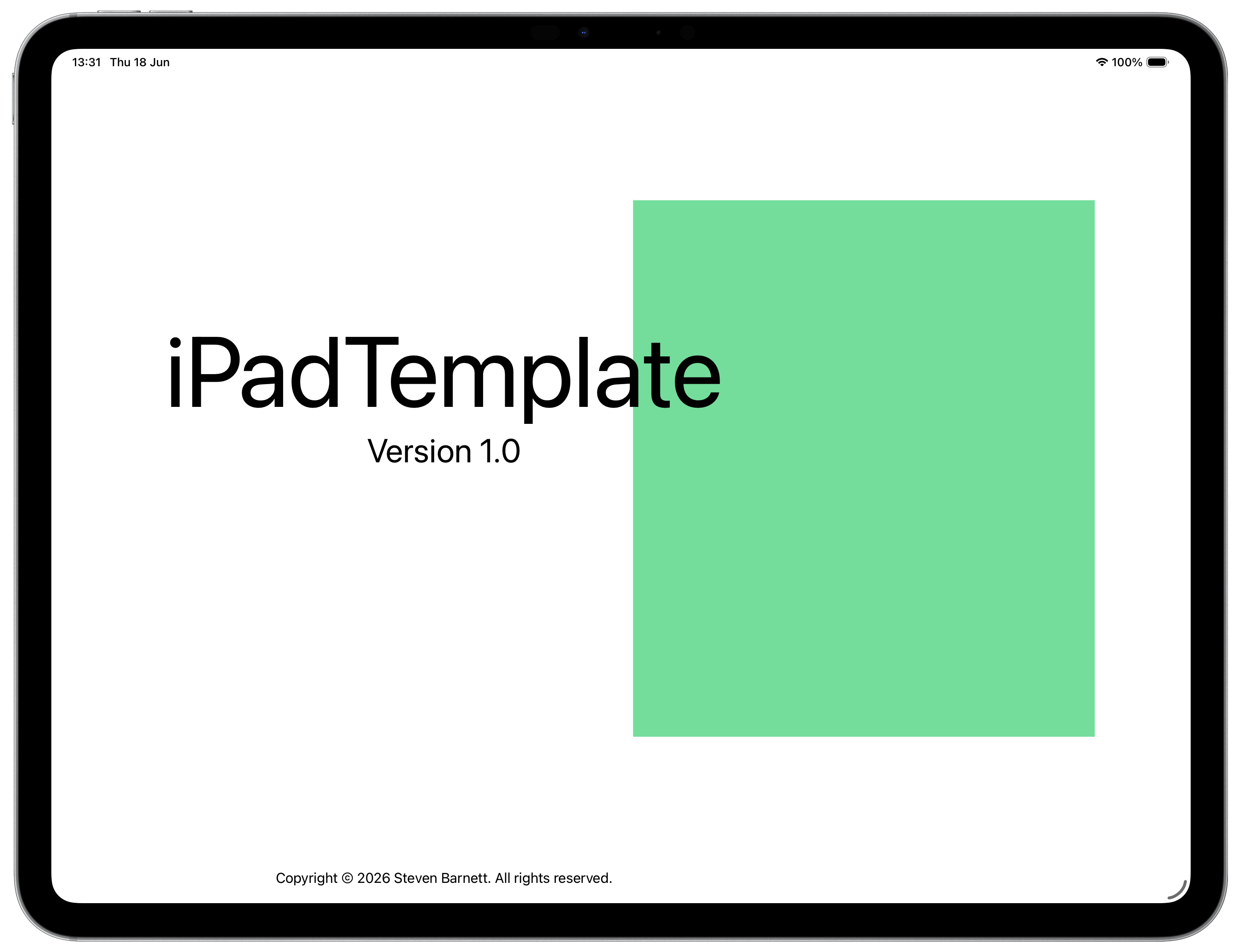
When the app starts, it displays a launch screen. This orients itself based on whether the device is landscape or portrait.
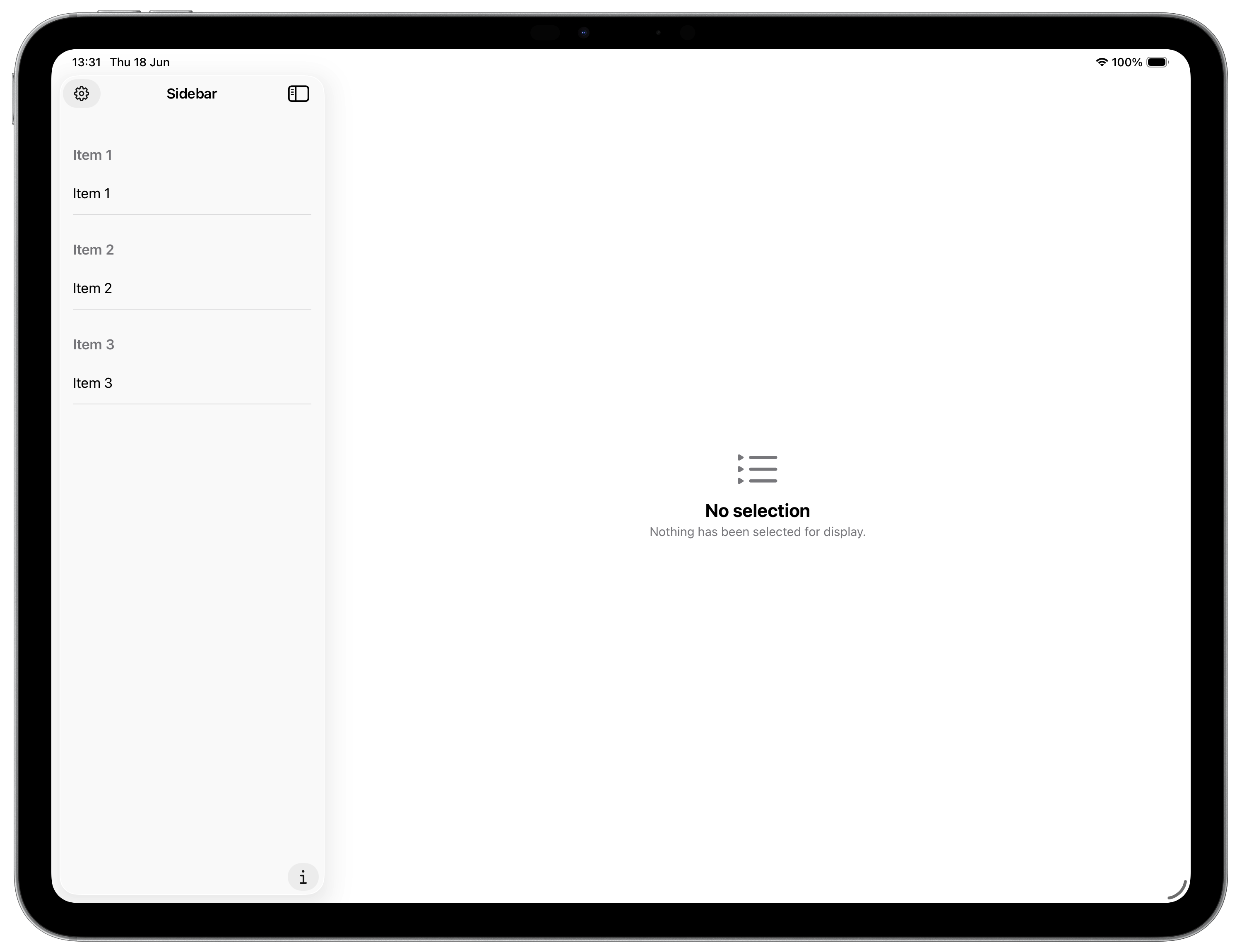
One the launch screen clears, the template window opens in a standard NavigationSplitView.
Under The Hood
Why it's useful...
On the face of it, looking at the above screen shots, it doesn't appear to be all that useful. The devil, as they say, is in the detail.
When the app starts, it detects whether the device is in landscape or portrait mode and adjusts which image it shows for a launch screen and the positioning of the text on that screen. Three text elements are displayed;
- The app name
- The version number of the app.
- The app copyright text.
The opening screen is then displayed. This is actually three views with the MainView being the top level NavigationSplitView and separate views for the side bar and the details.
Included in the template code is a list of text strings, giving the template an example of a List control with sections. One less thing to have to code from scratch. We also pass a binding to the sidebar for the currently selected item. We're almost always going to need a binding like this to transfer data from the sidebar to the detail view. The detail view also has a binding to the selected item, so it refreshes whenever the sidebar list changes.
Because we start out without a selection, there is code to present default content in the detail by way of a ContentUnavailableView().
Looking at the sidebar, there is an icon (top left) for a settings view. Tapping this displays a pre-configured settings popup with options for changing the display mode of the app between light and dark mode. Support for the light/dark change is built in to the template.
Bottom right of the sidebar is an information icon that, when tapped, displays an "about" view with details about the app and acknowledgements of shared resources used. This is sized to fit the content, so it not your normal popup sheet.
All of this represents the most basic functionality you would expect from an app of this kind and gives boilerplate for future extensions to the code. It isn't complex but is the kind of code that you will repeat time and again.There are other elements that could be added but it is a fine line between a useful template project and filling it with 'stuff' that you end up deleting later.
Using The Template
What do I do?
Using the template isn't quite as simple as creating a new project. Because the template is a little more complex than your typical project template, it was implemented in GitHub for you to clone. This will get you al the code into a local folder ready to use.
So, first step is to create a folder on your local machine and clone
the repo into it with
git clone https://github.com/sabarnett/iPadTemplate.git
This will get you your local project. The code in there is ready to run if you want
to test that it has come down ok.
However, having all your projects called "iPadTemplate" is going to be a recipe for a great deal of confusion. So your next job is to rename the project. Of course, you can do this manually. If you have a lot of time to spare and enjoy hand parsing dozens of text files, that is.
Personally, I recommend you checkout Stewart Lynches Project Renamer repo for a very handy utility that can rename projects in seconds. Install the renamer and rename the iPadTemplate to whatever project name you want to use.
And that's it... happy coding without the irritation of those first hours of coding boilerplate.
Where is it?
Can I have a copy?
The source for the iPad template is available on my GitHub page in the iPad Template repo.
Testimonials
Am I really any good?
Don't take my word for my abilities, take a look at other peoples opinions about me.

One very quickly runs out of superlatives with Steve. He is the cleverest person I know. He is highly innovative, passionate regarding the proper maintenance of agreed standards and protocols and establishes excellent relationships with our clients.

Steve is a rare developer resource who is able to provide a good breakdown of technical solutions for all audiences to understand... Steve understands the importance of project deliverable's both from a client and business perspective and shows a personal pride in ensuring the delivery schedules are met.

I have worked closely with Steve for his time with us and long before we formed our company. His technical ability far out-performs anyone I have known or met in companies we have worked with like IBM/EDS/Cap Gemini

Steven showed a great deal of commitment and skill when he worked with me. His attention to detail, comprehensive documentation and well thought out code, using very impressive technical standards meant that it was always possible to rely on the solutions provided being top notch. Steven is an asset to any company, at any level - if I were able to, I'd love to work with him again.

I have had the pleasure of working with Steven for several years in my role as CTO. He his one to the most multi-disciplined technically skilled developers I have known but what sets him apart is his eye for, and attention to detail, particularly when considering the user experience. I would absolutely not hesitate in recommending Steven.