When you code a Game Scene, it can rapidly become full of boiler-plate code and scaffolding for the numerous nodes that you need for any non-trivial game. In a SwiftUI app, this is generally solved using multiple discrete views. In SpriteKit, especially in tutorials, no such effort is made and you seem to just live with massive, complex, files.
For some of my games, I needed a toolbar which is, essentially, a few buttons that affect the state of the game but play no part in the game play. In the first pass of my game, this was coded straight into the Game Scene, resulting in a lot of code and clutter that distracted from the game itself.
That led to me building a toolbar node and abstracting the code out into a separate SKNode component. To keep the code simple, I used a delegate definition to communicate from the toolbar to the game code, allowing the toolbar to communicate changes without needing to know how the game scene would respond to them.
Toolbar Items
The first decision was to determine what the toolbar was going to contain. For my game, I needed three buttons:
- Show high scores
- Play/Pause
- Sound on/off
The play/pause and sound on/off buttons were going to need to change the button image when the state toggled. The show high scores button just communicates that it was pressed.
My resulting toolbar looked like this:
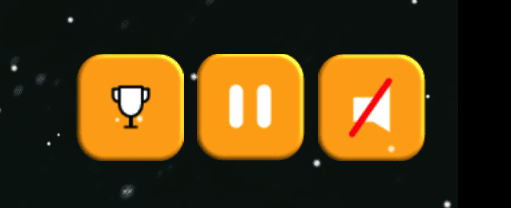
I did not want a background on the toolbar as I wanted it to float above the game.
Toolbar Delegate
Our starting point is to define a delegate for the toolbar. This will define the communications link between the component and the game.
protocol ToolbarDelegate {
    func playPause(isPaused: Bool)
    func playSound(turnOn: Bool)
    func showLeaderBoard()
}
By using a delegate in this way, we can easily pass any information we need to give the game. So, for example, for the play/pause button we can pass an indicator showing whether the game should pause or not. It is important to note that the toolbar is only responsible for communicating the 'paused state' and has no responsibility to actually pause or resume the game. That is the sole responsibility of the game itself.
When we define our toolbar node, we just need to define a delegate variable of type ToolbarDelegate that the game is required to set if it wants events to be passed to it.
class ToolbarNode: SKNode {

    var delegate: ToolbarDelegate?
The toolbar component
Shown below is t he complete source for the toolbar.
class ToolbarNode: SKNode {

    var delegate: ToolbarDelegate?
    var dataModel: SceneDataModel! {
        didSet {
            // Adjust icons
            if dataModel.playingSound == false {
                playSound.texture = SKTexture(imageNamed: "soundOn")
            }
        }
    }

    let playPause = SKSpriteNode(imageNamed: "pauseButton")
    let playSound = SKSpriteNode(imageNamed: "soundOff")
    let leaderBoard = SKSpriteNode(imageNamed: "leaderBoard")

    override init() {
        super.init()

        leaderBoard.position = CGPoint(x: 0, y: 0)
        leaderBoard.name = "LeaderBoard"
        addChild(leaderBoard)

        playPause.position = CGPoint(x: 45, y: 0)
        playPause.name = "PlayPause"
        addChild(playPause)

        playSound.position = CGPoint(x: 90, y: 0)
        playSound.name = "PlaySound"
        addChild(playSound)

        self.isUserInteractionEnabled = true
    }

    required init?(coder: NSCoder) {
        fatalError("init(coder:) has not been implemented")
    }

    override func touchesBegan(_ touches: Set<UITouch>, with event: UIEvent?) {
        guard let touch = touches.first else { return }
        let location = touch.location(in: self)

        let tappedNodes = nodes(at: location)
        if let _ = tappedNodes.first(where: {$0.name == "PlayPause"}) {
            togglePlayPause()

        } else if let _ = tappedNodes.first(where: {$0.name == "LeaderBoard"} ) {
            // showLeader Board tapped
            delegate?.showLeaderBoard()

        } else if let _ = tappedNodes.first(where: { $0.name == "PlaySound"}) {
            // Play/pause sound tapped
            togglePlayMusic()
        }
    }

    func togglePlayMusic() {
        if dataModel.playingSound {
            // Turn music off
            playSound.texture = SKTexture(imageNamed: "soundOn")
            delegate?.playSound(turnOn: false)
        } else {
            // turn nusic on
            playSound.texture = SKTexture(imageNamed: "soundOff")
            delegate?.playSound(turnOn: true)
        }
    }

    func togglePlayPause() {
        guard let parent else { return }

        if parent.isPaused {
            playPause.texture = SKTexture(imageNamed: "pauseButton")
            parent.isPaused = false
            delegate?.playPause(isPaused: false)
        } else {
            playPause.texture = SKTexture(imageNamed: "playButton")
            parent.isPaused = true
            delegate?.playPause(isPaused: true)
        }
    }
}
In my game, there is a model containing the shared data. This is passed to the toolbar in the dataModel property. In other games, you might want to replace this with local variables. When the data model is established, we adjust the image on the sound on/off button as the game may have started with sound off and the default image for the button needs to reflect this.
The three buttons are defined as SKSpriteNode's which are given an initial image.
The initialiser for the toolbar is responsible for configuring it. That configuration is very simple in that it just requires that the buttons are positioned in the toolbar node. Each button gets a name, so we know what button was tapped by the player. The final initialisation step is to enable user interaction:
self.isUserInteractionEnabled = true
By default, the toolbar will not respond to the user tapping the buttons. touchesBeganwll not fire so we cannot detect a tap. When you set isUserInteractionEnabled to true, you are telling SpriteKit that you want touch events.
touchesBeganis the heart of the toolbar. When a button is tapped, we use the name of the touched node to determine what was touched. Once we know that, we can call a handler to handle that specific button. For example, when the sound on/off button is tapped, we call a helper function:
    func togglePlayMusic() {
        if dataModel.playingSound {
            // Turn music off
            playSound.texture = SKTexture(imageNamed: "soundOn")
            delegate?.playSound(turnOn: false)
        } else {
            // turn nusic on
            playSound.texture = SKTexture(imageNamed: "soundOff")
            delegate?.playSound(turnOn: true)
        }
    }
This function is responsible for updating the image on the button. Once the correct image has been applied to the button, the delegate method is called that will tell the game what the button was tapped and what the new state is. It is the responsibility of the game to enact the change to the sound and the dataModel.
In my game scene, this is the code that will be called via the delegate:
    func playSound(turnOn: Bool) {
        if turnOn {
            addChild(music)
            dataModel.playingSound = true
        } else {
            music.removeFromParent()
            dataModel.playingSound = false
        }
    }
It adds or removes the sound node that is responsible for the background sound and updates the data model to reflect the new state.
Game Scene
To make this work, the game scene needs to define a couple of things. The class needs to defint the toolbar node:
let toolbar = ToolbarNode()
We also need to initialise the node to make the delegate connection:
    private func createToolbar() {
        toolbar.delegate = self
        toolbar.dataModel = self.dataModel
        toolbar.position = CGPoint(x: 390, y: 328)
        gameNode.addChild(toolbar)
    }
All we are going here is setting the game as the delegate to be called when buttons are tapped, setting the data model that contains the state variables, positioning the toolbar on screen and adding it to the scene; all basic initialisation
The final step is to define the functions that will be called from the toolbar when buttons are tapped. My preference here is to create an extension to the GameScene and conform to the ToolbarDelegate in the extension:
extension GameScene: ToolbarDelegate {
    func showLeaderBoard() {
        let wasPaused = dataModel.gamePaused

        // Pause the game if it isn't already paused.
        if !wasPaused {
            playPause(isPaused: true)
        }

        popup = HighScoresPopup(scores: dataModel.highScores, latestScore: dashboard.score) {
            // OnClose - toggle the game back on
            if !wasPaused {
                self.playPause(isPaused: false)
            }
            self.popup = nil
        }
        popup!.position = CGPoint(x: 0, y: 0)
        popup!.zPosition = 9999

        popupNode.addChild(popup!)
        popup!.show()
    }

    func playPause(isPaused: Bool) {
        if isPaused  == false {
            dataModel.gamePaused = false
            gameNode.isPaused = false
            gameNode.speed = 1
            self.physicsWorld.speed = 1

            if dataModel.playingSound == false {
                addChild(music)
            }
        } else {
            dataModel.gamePaused = true
            gameNode.isPaused = true
            gameNode.speed = 0
            self.physicsWorld.speed = 0

            if dataModel.playingSound {
                music.removeFromParent()
            }
        }
    }

    func playSound(turnOn: Bool) {
        if turnOn {
            addChild(music)
            dataModel.playingSound = true
        } else {
            music.removeFromParent()
            dataModel.playingSound = false
        }
    }
Obviously, your functionality will depend on what you need to do.